
Ready to Revolutionize the Way You Build Websites?
Heard about Divi 5 and wondering how to install it without tearing your hair out? Perfect, you're in the right place!
Dans le monde du webdesign, Divi s'est imposé comme le couteau suisse ultime pour WordPress. Développé par les génies d'Elegant Themes, ce n'est pas juste un thème, c'est carrément une plateforme de conception visuelle qui permet même à votre grand-mère (si elle le voulait) de créer des sites époustouflants sans écrire une seule ligne de code. Si vous n'êtes pas encore convaincu, jetez un oeil sur l'article qui vous explique pourquoi à choisir le thème Divi pour WordPress.
With the arrival of Divi 5, it's a bit like switching from a gasoline car to a Tesla: faster, smarter, more powerful. The Elegant Themes team promises significant improvements in performance, flexibility, and user experience. In short, they've gone all out to solidify their leadership position.
Today, I'll try to explain, step by step, how to configure and install Divi 5 on WordPress.
Whether you're a complete beginner who can't tell the difference between a plugin and a widget, or an experienced developer looking to optimize your workflow, we'll cover the most important points together: from system requirements to advanced builder configuration, including maintenance best practices.
Get ready to unlock the full potential of Divi 5 and transform your creative visions into digital reality!
Part 1: Preparations
Avant de foncer tête baissée dans l'installation de Divi 5, on va prendre cinq minutes pour se préparer correctement. Ça ressemble à vérifier qu'on a assez d'essence avant un road trip et ça évite de tomber en panne au milieu de nulle part !
Cette section va vous guider à travers toutes les vérifications et actions préliminaires indispensables.
1.1 System Requirements (or the Bare Minimum to Make it Work)
For Divi 5 to run like clockwork, your hosting environment must meet certain technical requirements. Ignoring these recommendations is a bit like trying to run a modern video game on a 2005 computer: it will lag, bug out, or crash completely.
WordPress Version: Divi 5 is designed for the latest versions of WordPress. You absolutely need a recent stable version (generally 6.0 or higher). It's logical: you wouldn't ask an F1 driver to drive a 2CV, would you?
PHP Version: PHP is the engine that runs WordPress. Divi 5, like all self-respecting modern themes, needs a recent version for security and performance reasons.
- Minimum required: PHP 7.4 (but come on, it's 2024 already!)
- Recommended: PHP 8.0 or higher. 8.x versions are like going from a bicycle to a motorcycle in terms of speed and memory management.
You can usually change the PHP version via your host's control panel (cPanel, Plesk, etc.). If you can't find it, call your host's support – they're there for that!
PHP Memory (memory_limit): Divi is a feature-rich theme, which means it has a bit of an appetite for memory. That's normal, it does a lot!
- Minimum required: 128 MB (that's truly the bare minimum)
- Recommended: 256 MB or 512 MB (that's where you can breathe easier)
To increase this limit, you can add define('WP_MEMORY_LIMIT', '256M'); to your wp-config.php file, or kindly ask your host.
Execution Time (max_execution_time): This setting determines how long a PHP script can run before saying "stop, I give up." Complex Divi operations (demo imports, backups) can take their time, like a fine wine aging.
- Minimum required: 120 seconds
- Recommended: 300 seconds (5 minutes, time to make a coffee)
Maximum Upload Size: These settings control the size of files you can upload, including the Divi installation file and your 4K vacation photos.
- Minimum required: 64 MB for upload_max_filesize and post_max_size
- Recommended: 128 MB or more (you can never be too careful)
Required PHP Extensions: Make sure these extensions are enabled: dom, gd, mbstring, zip, curl. They are usually enabled by default, but a check never hurts. It's like checking you have your keys before leaving the house.
To check all this, go to "Tools > Site Health > Info > Server" in your WordPress dashboard, or use a plugin like "Health Check & Troubleshooting."
1.2 Backup (your Lifeline)
This is the most critical step before any major modification to your site. A full backup is like having a time machine: if something goes wrong, you can go back to when everything was working perfectly.
Why it's crucial: A theme installation can sometimes create conflicts with your existing plugins, database errors, or display issues. A backup is your safety net, your emergency parachute.
Backup Methods:
Backup plugins: Plugins like UpdraftPlus, Duplicator, or WP Migrate DB are your best friends. They create complete backups (files AND database) and store them securely (cloud, FTP, local). It's simple, effective, and gives you peace of mind.
Via cPanel/Plesk: Most hosts offer built-in backup tools in their control panel. It's convenient and often automatic.
Manual method: You can download all your WordPress files via FTP and export your database via phpMyAdmin. It's more technical, but it gives you total control. Reserved for adventurers!
Important: A backup is only useful if it works. If possible, test your backup on a staging or local environment to ensure it's intact. It's like testing your parachute before jumping!
1.3 Choosing the Right Hosting (the Foundation of your Success)
Divi's performance is directly linked to the quality of your hosting. Underpowered hosting with Divi is like trying to rally race with a scooter: technically possible, but the experience won't be great.
Hosting Impact: Divi, with its visual builder and numerous options, is resource-intensive. Good hosting ensures fast loading times and smoothness when using the Visual Builder. The difference between crappy hosting and good hosting is like the difference between a bicycle and a Ferrari.
Hosting Types:
Shared hosting: It's often the cheapest, but you share resources with other sites. This can lead to up-and-down performance. Suitable for small sites with low traffic, like your cat's blog.
VPS (Virtual Private Server): More dedicated resources and better control. Ideal for medium-sized sites or those that need more power. It's the sweet spot between price and performance.
Dedicated/Cloud hosting: The most powerful and most expensive, with maximum resources. Recommended for large, high-traffic sites or agencies managing multiple sites.
Selection Criteria:
- Resources: Sufficient RAM, CPU, and SSD disk space
- Support: Responsive and competent technical support is invaluable when things go wrong
- WordPress Optimization: Some hosts offer specifically optimized plans for WordPress, with built-in caches and adapted PHP configurations
Il existe aussi une solution d’hébergement taillée sur mesure pour Divi, baptisée Divi Hosting — solution officiellement pensée pour Divi🔗. L’idée est simple : un hébergement WordPress déjà configuré et optimisé pour faire tourner Divi sans prise de tête. Pour être totalement transparent, je ne l’ai pas encore testé moi-même, mais il mérite d’être mentionné si vous cherchez une solution officiellement pensée pour Divi.
1.4 Getting Divi 5 (the Holy Grail of Web Design)
Divi isn't free and isn't floating around in the WordPress theme directory. It's a premium product, and you have to go through Elegant Themes to get it.
Achat de la licence : Vous devez souscrire à un abonnement Elegant Themes 🔗. Ils proposent généralement deux options : annuelle ou à vie. Les deux donnent accès à Divi, à tous leurs autres thèmes et plugins (comme Extra et Bloom), plus le support technique et les mises à jour. C'est un peu comme un abonnement Netflix, mais pour les thèmes WordPress.
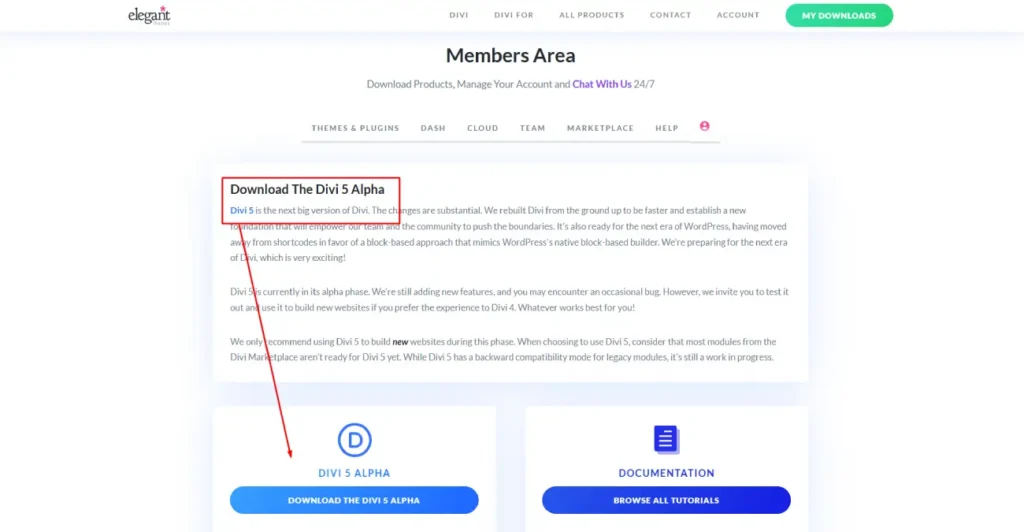
File Access: Once your membership is active, log in to your Elegant Themes account. The divi.zip file is located in the "Members" or "Downloads" section. Make sure to download the latest stable version – we don't want a buggy beta version!
Si vous ne trouvez pas du premier coup, rendez-vous ici🔗.
Part 2: Installation (the Moment of Truth)
Now that everything is ready and you have your precious Divi file, let's get down to business. There are two main methods for installing a WordPress theme, and we'll look at both.
2.1 Method 1: Installation via the WordPress Dashboard
This is the simplest and most common method. If you know how to navigate WordPress, you can do this!
- Log in to your WordPress dashboard (that's easy).
- Navigate to "Appearance > Themes." You'll see all your current themes, like a virtual wardrobe.
- Click on "Add New" at the top of the page, or on the large square with a plus sign. This is your gateway to new themes.
- Click on "Upload Theme" at the top of the next page. That's where it gets interesting.
- Choose your divi.zip file downloaded from Elegant Themes. Be careful not to confuse it with your tax return file!
- Click on "Install Now." WordPress will do its magic and install the theme. It might take a few moments, time to make yourself some tea.
- Activate the theme. Once the installation is complete, click "Activate" to make Divi active on your site.
Congratulations! Divi is now installed and ready to transform your site into a digital masterpiece.
2.2 Method 2: Installation via FTP (for the Brave or the Desperate)
If the dashboard installation fails (due to file size limits or other technical quirks), you can manually install Divi 5 on WordPress via FTP. It's more technical, but it works every time.
- Unzip the divi.zip file on your computer. This will create a folder named "Divi."
- Connect to your server via FTP with a client like FileZilla or Cyberduck. You'll need your FTP credentials (provided by your host).
- Navigate to wp-content/themes/ on your server.
- Upload the Divi folder to this directory. It's like copying a folder, but remotely.
- Activate the theme from your WordPress dashboard. Go to "Appearance > Themes" and activate Divi.
And there you have it! Divi is installed, even if WordPress was acting up.
Part 3: Initial Configuration (Basic Settings)
After installation, a few configuration steps are necessary to prepare Divi to create wonders. It's like setting up a new car: you need to adjust the mirrors and the radio before hitting the road.
3.1 License Activation (for Automatic Updates)
To receive automatic updates and access Elegant Themes support, you must activate your license. It's like registering your product after purchase.
- Navigate to "Divi > Theme Options" in your dashboard.
- Click on the "Updates" tab.
- Enter your Elegant Themes username and API key (available in your Elegant Themes account).
- Save the changes.
Once activated, your license will allow Divi to update automatically. It's like having a mechanic who automatically takes care of your car!
3.2 Child Theme Installation (the Ultimate Best Practice)
Using a child theme is a fundamental practice for any WordPress site using a premium theme like Divi. It's your insurance policy against updates that break everything.
What is a child theme? It's a sub-theme that inherits all the functionalities of Divi (the parent theme), but can be customized without risk.
Why is it crucial? If you edit Divi’s files directly, all your changes will be lost at the next update. With a child theme, your customizations are protected. It’s like having a backup copy of your changes.
How to install it:
- Download the Divi child theme from your Elegant Themes account.
- Install it like any other theme.
- Activate the child theme. Your site will continue to use Divi, but all your future customizations will be safe.
Conclusion: You're Now Ready for the Divi 5 Adventure!
There you go! You now have all the tools to set up and install Divi 5 on WordPress like a pro. We've covered all aspects: from technical prerequisites to license activation, including best practices like the child theme.
Divi installation might seem intimidating at first, but by following this step-by-step guide, it's actually quite simple. The key is preparation: checking system requirements, making a backup, choosing good hosting. Once these solid foundations are in place, the installation goes smoothly.
Don't forget: Rome wasn't built in a day, and neither was your perfect website. Take the time to familiarize yourself with Divi 5, explore its features, and most importantly, have fun! That's the most important thing in website creation.
If you encounter difficulties, don't panic. The Divi community is huge and supportive, and Elegant Themes' support is responsive. You're never alone in this adventure!
Now it's your turn! Bring your new website to life with your creativity. Next step: read the article "Divi 5: A Smoother, More Intuitive Interface" and explore all its features.
FAQ – Thème Divi pour WordPress
Qu'est-ce que le thème Divi pour WordPress ?
Divi est un thème WordPress premium développé par Elegant Themes. Il intègre le Divi Builder, un constructeur visuel permettant de créer des pages et des sites web sans coder. Divi est utilisé par des freelances, des agences et des entrepreneurs pour concevoir rapidement des sites professionnels personnalisés.
Quelle est la différence entre Divi Theme et Divi Builder ?
Le Divi Theme est le thème WordPress complet qui inclut toutes les fonctionnalités de conception de Divi. Le Divi Builder est le constructeur de pages visuel qui peut également être utilisé comme plugin avec d'autres thèmes WordPress. Si vous souhaitez profiter de toutes les fonctionnalités Divi, l'utilisation du thème Divi reste généralement le choix le plus simple.
Peut-on utiliser Divi avec WooCommerce ?
Oui, Divi est entièrement compatible avec WooCommerce. Vous pouvez personnaliser les fiches produits, les pages catégories, le panier et le tunnel de commande grâce aux modules WooCommerce intégrés dans Divi Builder.
Divi est-il adapté aux débutants ?
Oui. Divi a été conçu pour permettre aux utilisateurs sans connaissances en développement web de créer un site WordPress professionnel. Son éditeur visuel affiche les modifications en temps réel, ce qui facilite la prise en main même pour un entrepreneur ou un créateur de contenu débutant.
Peut-on télécharger Divi gratuitement ?
Non, Divi est un thème premium payant. Les versions de Divi proposées gratuitement sur certains sites tiers sont souvent obsolètes, modifiées ou peuvent contenir des failles de sécurité. Il est recommandé de télécharger Divi uniquement depuis le site officiel d'Elegant Themes.
Divi est-il bon pour le référencement naturel (SEO) ?
Oui, Divi est compatible avec les bonnes pratiques SEO modernes. Le thème génère un code propre, fonctionne avec les principales extensions SEO comme Rank Math ou Yoast SEO et permet d'optimiser les performances du site lorsqu'il est correctement configuré.
Divi est-il compatible avec WordPress 7.x ?
Oui. Divi est régulièrement mis à jour afin d'assurer sa compatibilité avec les dernières versions de WordPress. Elegant Themes publie fréquemment des correctifs et des améliorations pour maintenir la stabilité et la sécurité du thème.
Pourquoi choisir Divi plutôt qu'Elementor ?
Divi et Elementor sont deux constructeurs de pages populaires. Divi se distingue par sa licence illimitée, son Theme Builder intégré, ses nombreux templates et son écosystème particulièrement apprécié des agences WordPress qui gèrent plusieurs sites clients.
Divi 5 vaut-il la peine de migrer depuis Divi 4 ?
Oui, pour la majorité des utilisateurs. Divi 5 apporte une architecture modernisée, de meilleures performances, une gestion native du Flexbox et une base plus évolutive pour les futures fonctionnalités. Toutefois, il est conseillé de tester la compatibilité des extensions utilisées avant toute migration sur un site en production.
Tools marked with 🔗 are affiliate links. If you make a purchase, I earn a commission at no extra cost to you. For more details, you can view the full transparency disclosure page.

